
Update your linked AWS account to use new features
When a new feature is added to opswitch, it is necessary to add permissions to the IAM Role to be able to perform that task. Please follow the steps below to update.
-
From the header menu, click on “SETTINGS” - “Linked AWS Account”.
-
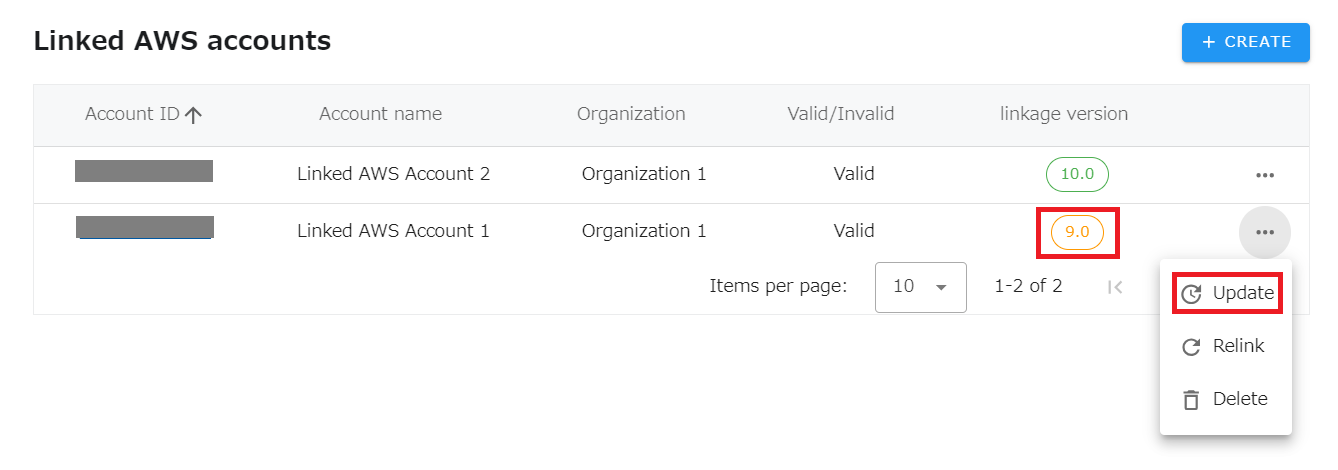
In the list of linked AWS accounts, a linkage that is not the latest version is orange. Click on the icon for this account and you will see an “Update” button, click on it.
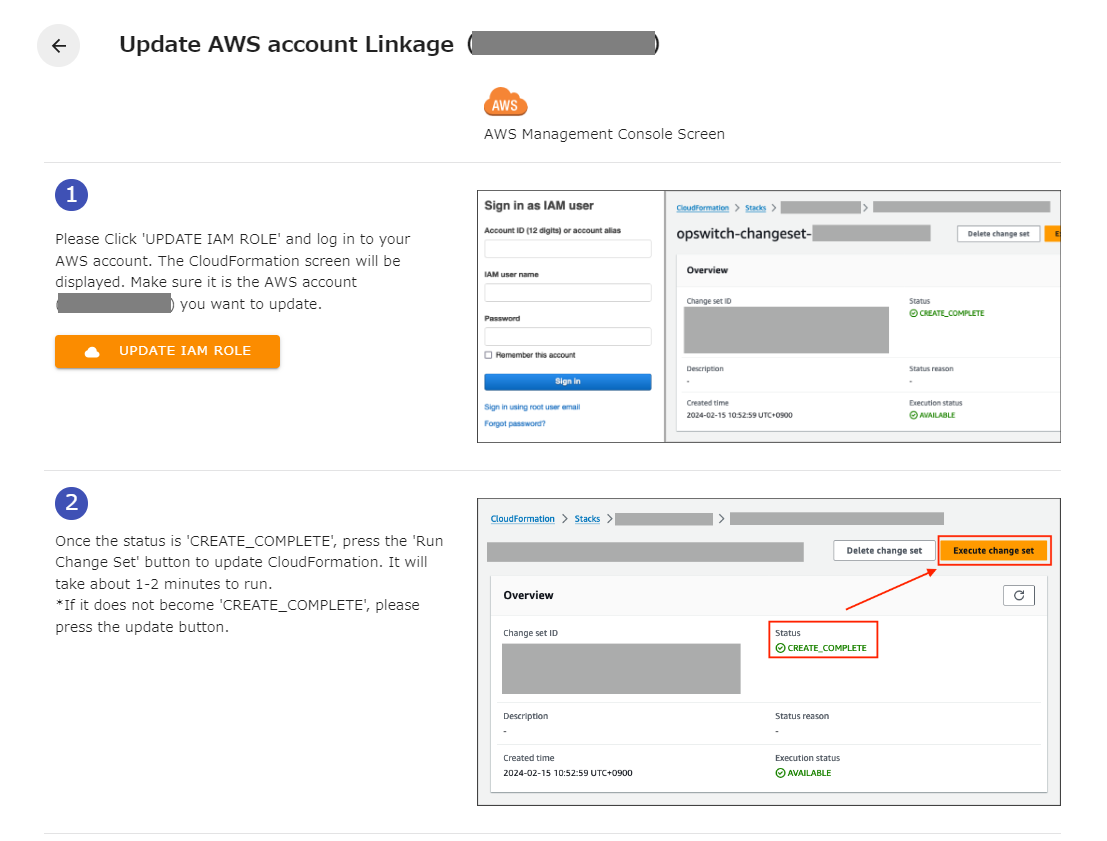
- You will be taken to the screen to update your AWS account linkage. Follow the on-screen instructions to update the AWS account linkage. Finally, press the UPDATE button.
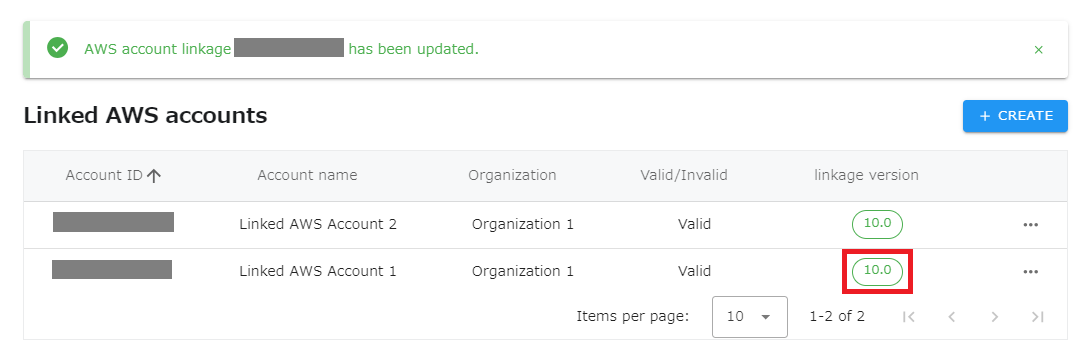
- If the version of the AWS account linkage is updated and the status is enabled, it is successful.
If you have moved to another screen without pressing the refresh button
Section titled “If you have moved to another screen without pressing the refresh button”After updating the IAM Role, if you exit the browser or move to another screen without pressing the update button at the bottom, the process is not completed. In that case, please open the AWS Collaboration Update screen again and press the Update button.
If the state becomes invalid
Section titled “If the state becomes invalid”You will need to relink your AWS account. Please click here for more information.