
Link to your Google Cloud project
You will need to link your Google Cloud project in order to set up permissions to manipulate resources in your Google Cloud environment.
- From the header menu, click “SETTINGS” - “Google Cloud federations”.
- Click the “Create” button in the upper right corner of the list.
- The “Create Google Cloud federation” screen will open. Follow the steps on the screen to link your Google Cloud project.
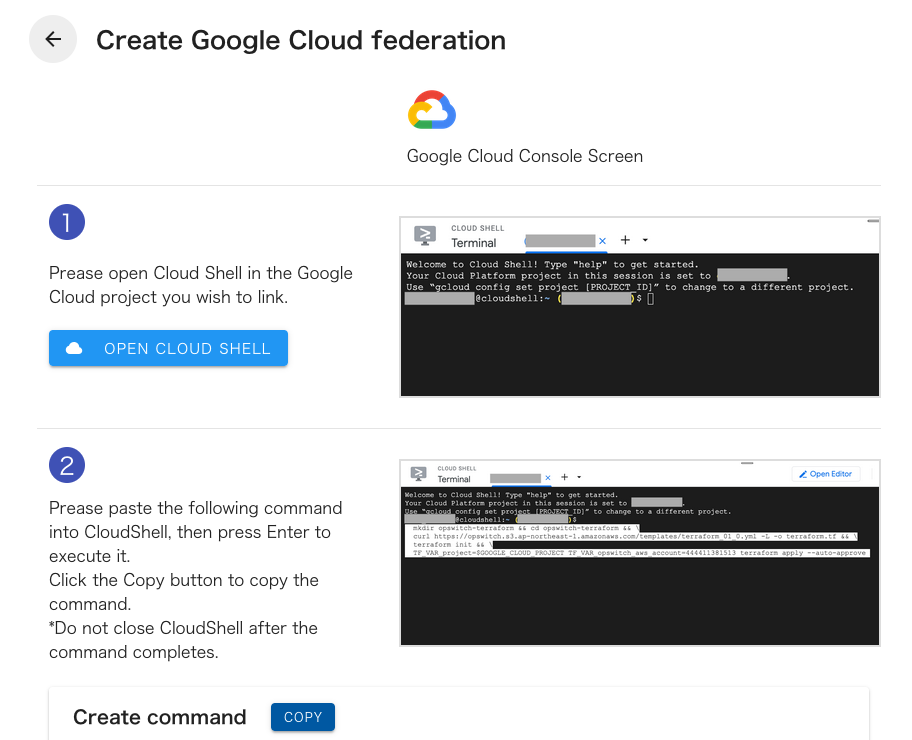
The minimum required permissions to create resources in CloudShell are as follows:
- iam.policybindings.get
- iam.policybindings.list
- iam.roles.create
- iam.roles.get
- iam.roles.update
- iam.roles.delete
- iam.serviceAccounts.create
- iam.serviceAccounts.get
- iam.serviceAccounts.delete
- iam.serviceAccounts.getIamPolicy
- iam.serviceAccounts.setIamPolicy
- iam.workloadIdentityPoolProviderKeys.delete
- iam.workloadIdentityPoolProviders.create
- iam.workloadIdentityPoolProviders.get
- iam.workloadIdentityPoolProviders.list
- iam.workloadIdentityPoolProviders.delete
- iam.workloadIdentityPools.create
- iam.workloadIdentityPools.get
- iam.workloadIdentityPools.list
- iam.workloadIdentityPools.delete
- resourcemanager.projects.createPolicyBinding
- resourcemanager.projects.get
- resourcemanager.projects.getIamPolicy
- resourcemanager.projects.setIamPolicy
- serviceusage.services.enable
- serviceusage.services.list
The permissions of the IAM Role created after AWS account linking are listed on the following page.
- This feature is only available for Google Cloud projects that are subscribed to Classmethod Google Cloud Service.
- The available Google Cloud projects are updated once a day. The project may not be available immediately after issuance.
- If you stop using Classmethod Members for a Google Cloud project while using opswitch, any existing Google Cloud integrations will be disabled.