
Invite users
You can invite users to your organization. Invited users can access information within the organization according to their permissions. Inviting users allows multiple people to maintain jobs.
Invited users will be sent an email, and if you invite an email address that is not registered with opswitch, the user will be automatically created.
- Procedure for invitations
- Procedure if invited
- The maximum number of organizations to which you can belong
Procedure for invitations
Section titled “Procedure for invitations”-
Click on “SETTINGS” - “Organizations” in the header menu.
-
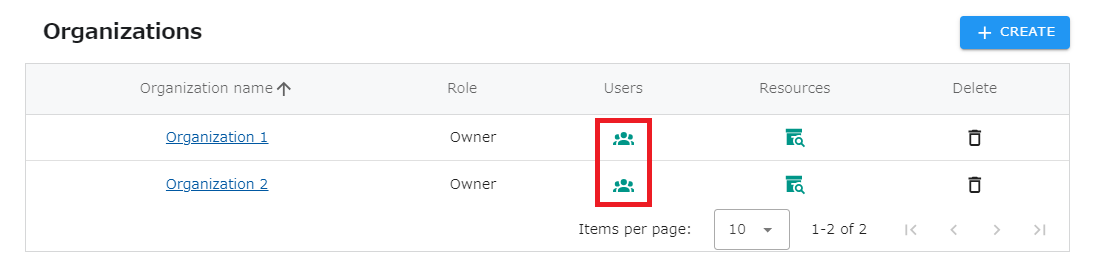
Click the icon in the column of the list of users belonging to the organization to which you want to add users.
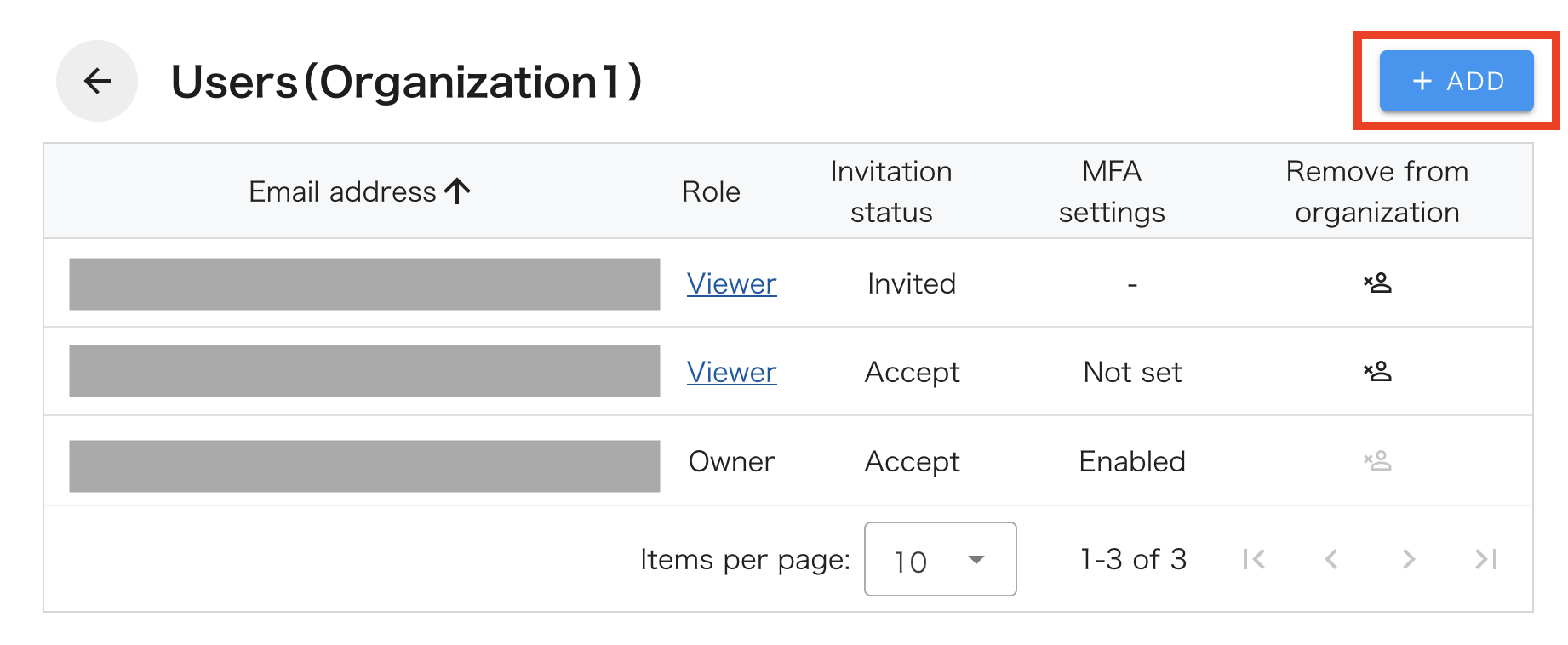
- A list of users who belong to the group will be displayed. Click the ADD button above the table.
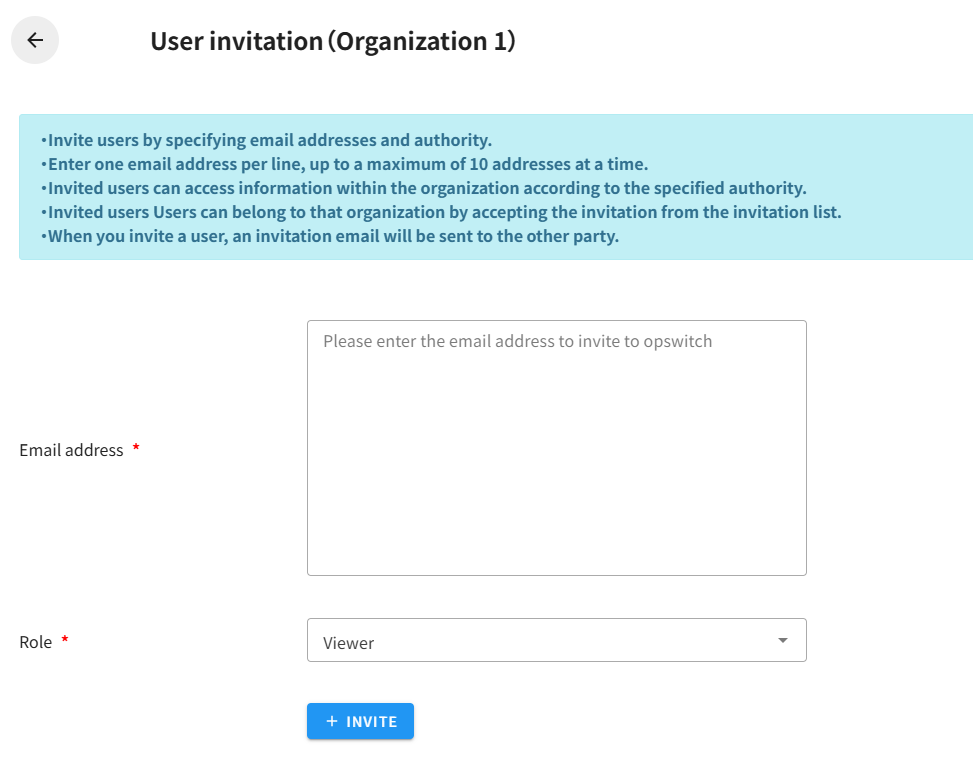
- Enter your “E-mail address,” select “Role,” and click the INVITE button. You can enter up to 10 email addresses at a time.
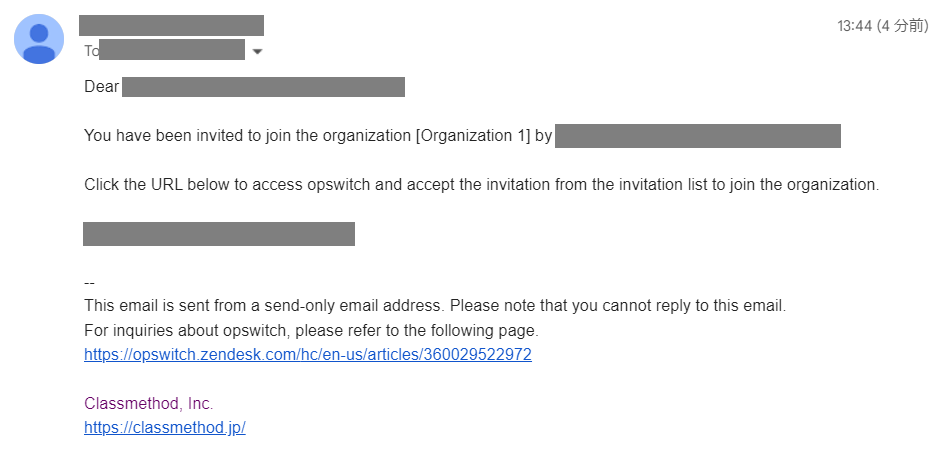
Invitation completed. An invitation e-mail is sent to the e-mail address of the invitee. When the invited user accepts the invitation, he/she will be added to the organization. Please refer to this page for the operations that can be performed for each authority.
Procedure if invited
Section titled “Procedure if invited”For users already registered with opswitch
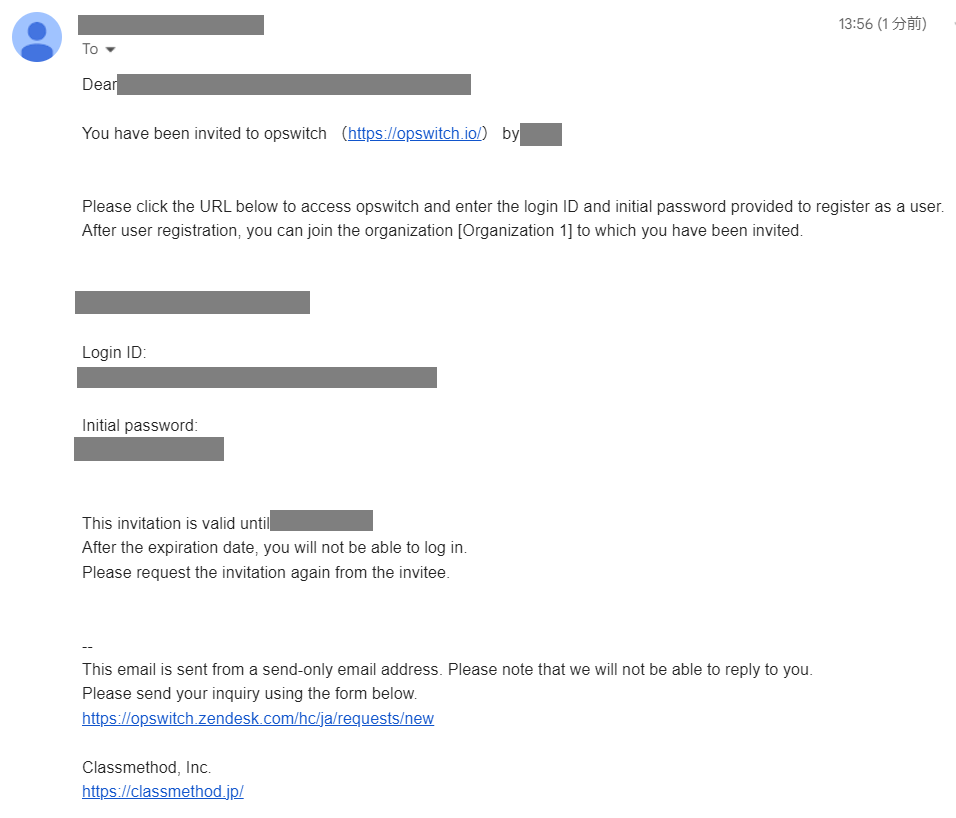
Section titled “For users already registered with opswitch”- Access the login URL provided in the invitation email.
-
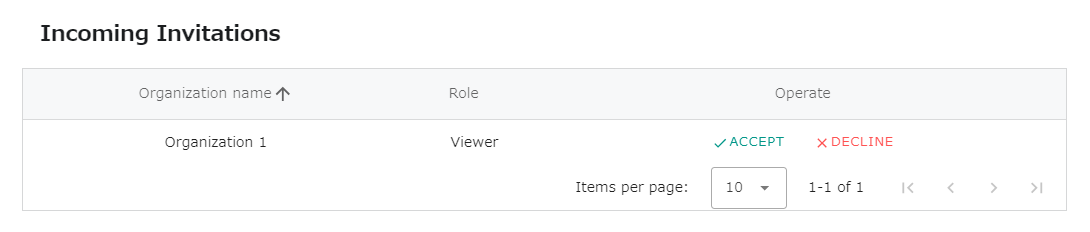
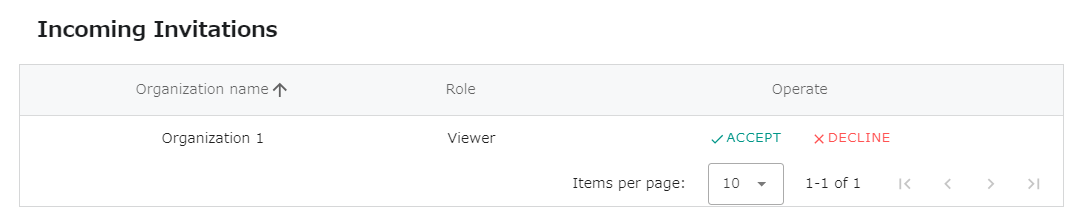
Click on “SETTINGS” - “Incoming Invitations” in the header menu.
-
By accepting, you can join the organization.
For users not registered with opswitch
Section titled “For users not registered with opswitch”- Access the login URL provided in the invitation email.
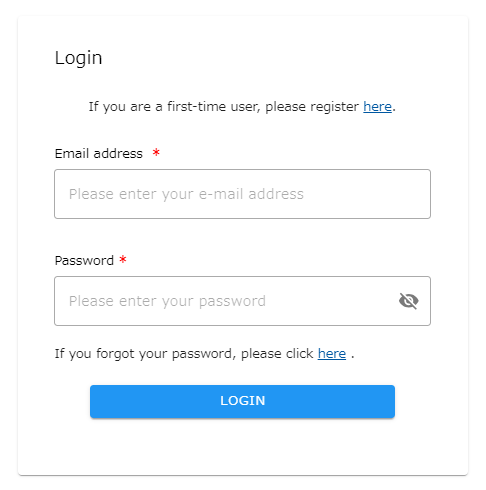
- Log in with your registered email address and initial password.
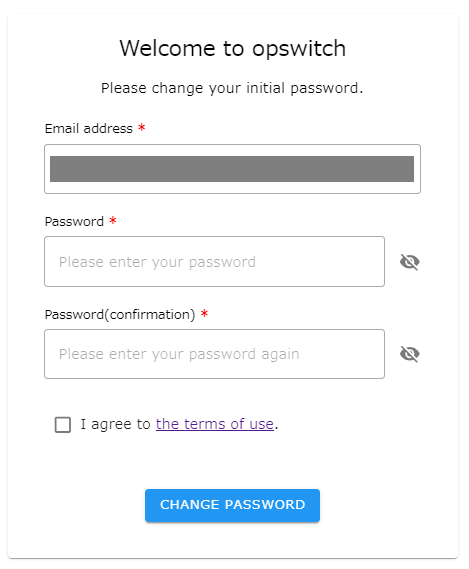
- To change the initial password, a screen for registering a new password will appear.Enter your new password and click “CHANGE PASSWORD” (be sure to read the “Terms of Use” as well).
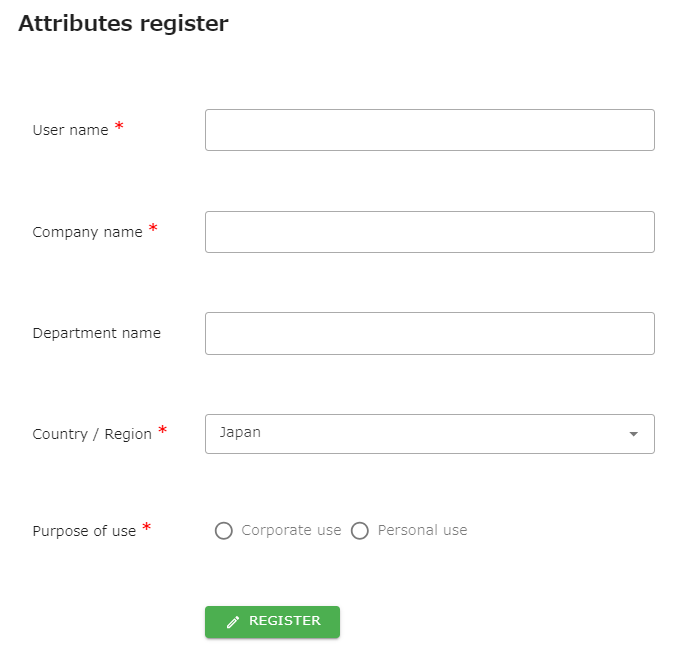
- Enter the required fields such as “Name” and “Company Name” and click “REGISTER”.
-
Click on “SETTINGS” - “Incoming Invitations” in the header menu.
-
By accepting, you can join the organization.
The maximum number of Organizations to which you can belong
Section titled “The maximum number of Organizations to which you can belong”The maximum number of Organizations an opswitch account can belong to is 20. If you are already a member of 20 Organizations, you will not be able to accept the invitation.
About Email Notification Settings
Section titled “About Email Notification Settings”When you join an organization, the organization’s email notification setting is automatically set to “Send”. If you wish to change the setting, please see the following page.