
Start/Stop VM instance
- From the header menu, click “TASK” - “Compute Engine” - “Start/Stop VM instance”.
- A list of tasks will be displayed. Once you have created a task, you can edit or delete it from this screen. At first, there are no tasks, so click the CREATE button.
- Enter the conditions and click the CREATE button.
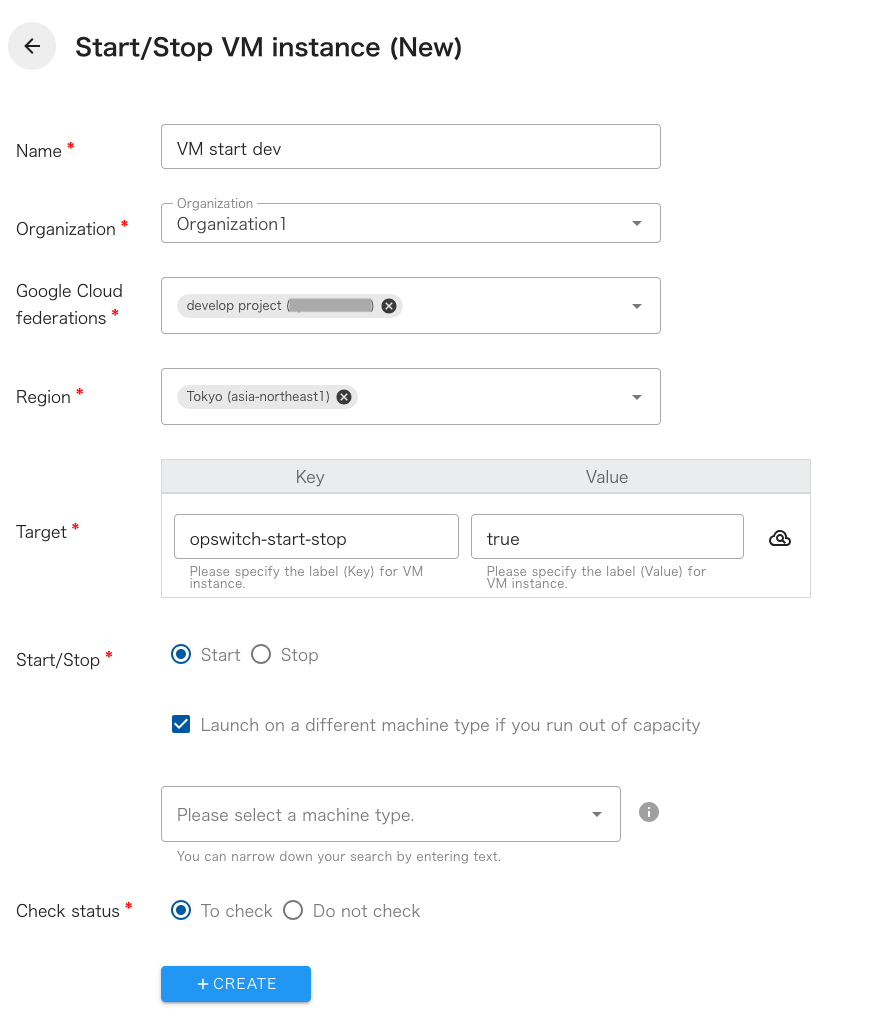
The following is a description of the items on the screen.
| Name | The name of the task. |
|---|---|
| Organization | Specify the organization. Members of the same organization can browse and edit. |
| Google Cloud federations | Linked Google Cloud projects will be displayed. Select the target Google Cloud project. |
| Region | Select the target regions. Multiple selections are possible. All zones within the selected regions will be targeted, and zone-specific selection is not available. |
| Target | Specify the label (Key and Value) of the VM instance you wish to operate. You can also set the same label to multiple VM instances to start or stop them all at once. |
| Start/Stop | Select whether to start or stop the VM instance. |
| Launch on a different machine type if you run out of capacity | When launching an instance, if the target instance cannot be launched due to a capacity shortage error (ZONE_RESOURCE_POOL_EXHAUSTED), this option will attempt to launch with the specified machine type. If not checked, it will not attempt to launch with an alternative machine type. |
| Check status | Checks the status of the created resource. If checked, success is considered when the created resource is completed. If not checked, success is considered when the API returns a successful response. |
- This task does not support the “Suspend” and “Resume”.
- The startup task is executed only for EC2 instances in the “stopped” state, and the stop task is executed only for EC2 instances in the “running” state. Nothing is done to EC2 instances in other states.
- VM instance launch may fail due to capacity shortage on the Google Cloud side for the target instance. If you want to ensure launch, please reserve zone resources to secure capacity.
- Even if you specify “Launch with an alternative machine type in case of capacity shortage”, the launch will fail if there is a capacity shortage for the specified instance type. If you want to ensure launch, please reserve zone resources to secure capacity.
- The machine type changed due to “Launch on a different machine type if you run out of capacity” will not be automatically corrected.
- When changing the machine type due to “Launch on a different machine type if you run out of capacity”, errors may occur depending on the combination of machine types before and after the change. Before scheduling the job, please manually change the machine type and confirm that the VM instance can be launched without issues. For details, please refer to the following Google Cloud documentation:
Edit the machine type of a compute instance | Compute Engine Documentation | Google Cloud