
Create organization holiday settings
By creating organization holiday settings and associating them with jobs, you can configure holiday settings for multiple jobs in your organization at once.
- Click “Settings” - “Holiday Settings” in the header menu.
- Click the “Create” button at the top right of the list.
- The “Create organization holiday settings” screen will open.
- Fill in the information and click the Create button.
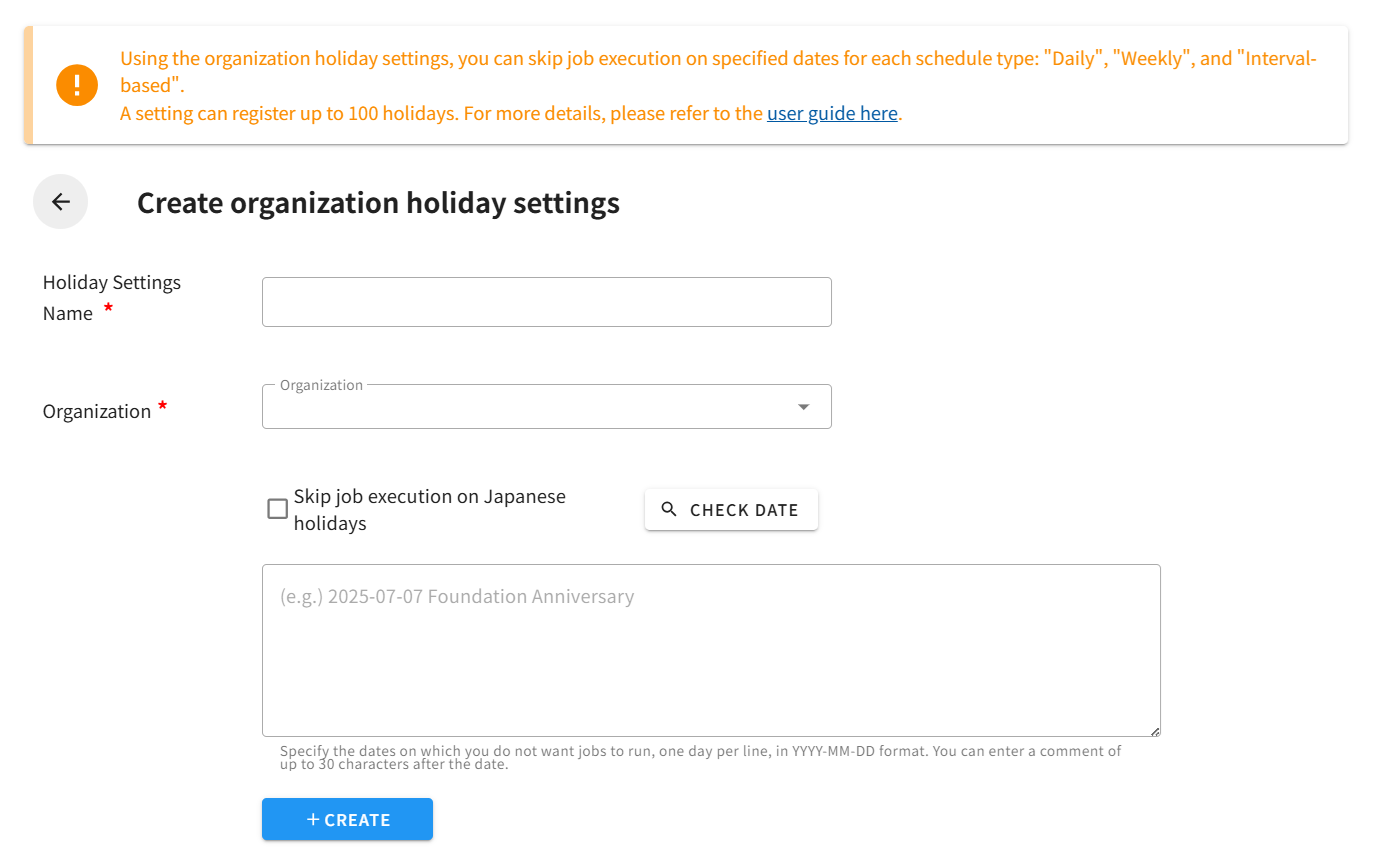
- If you do not want jobs to run on Japanese national holidays, check the box. You can confirm the dates by clicking the “Check Dates” button.
- Specify dates when you do not want jobs to run, one date per line, in YYYY-MM-DD format.
- You can add comments up to 30 characters after the date.
- For example, if you run “Weekly” jobs on Monday, Tuesday, Wednesday, Thursday, and Friday, you do not need to specify Saturday and Sunday dates in the organization holiday settings.
- If “Skip job execution on Japanese national holidays” is checked, please enter only other holidays in the form.
- Please note that this cannot be configured for jobs with schedules other than “Daily,” “Weekly,” or “Specify Execution Interval.”
*After creating organization holiday settings, if you want to apply them to jobs, please refer to the “Batch Job Configuration” section under “About Organization Holiday Settings”.