
Create a New Inquiry
Click the “New Inquiry” button on the inquiry list screen to open the new inquiry creation screen.
Members Portal Check
Section titled “Members Portal Check”First, you will be asked “Do you have a Members Portal account?”
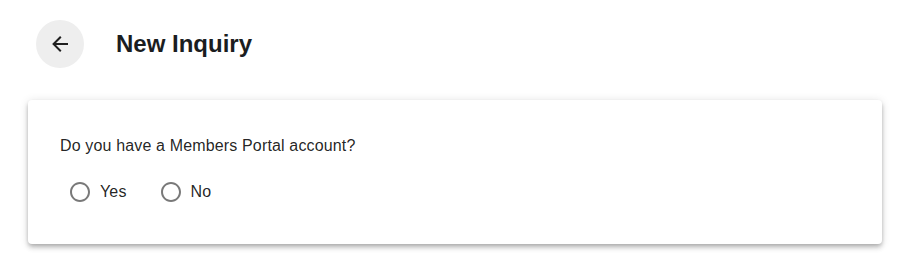
If you select “Yes”, you will be guided to submit your inquiry through the Members Portal. You can receive faster support through the Members Portal.
If you select “No”, the inquiry form will be displayed.
Filling in the Inquiry Form
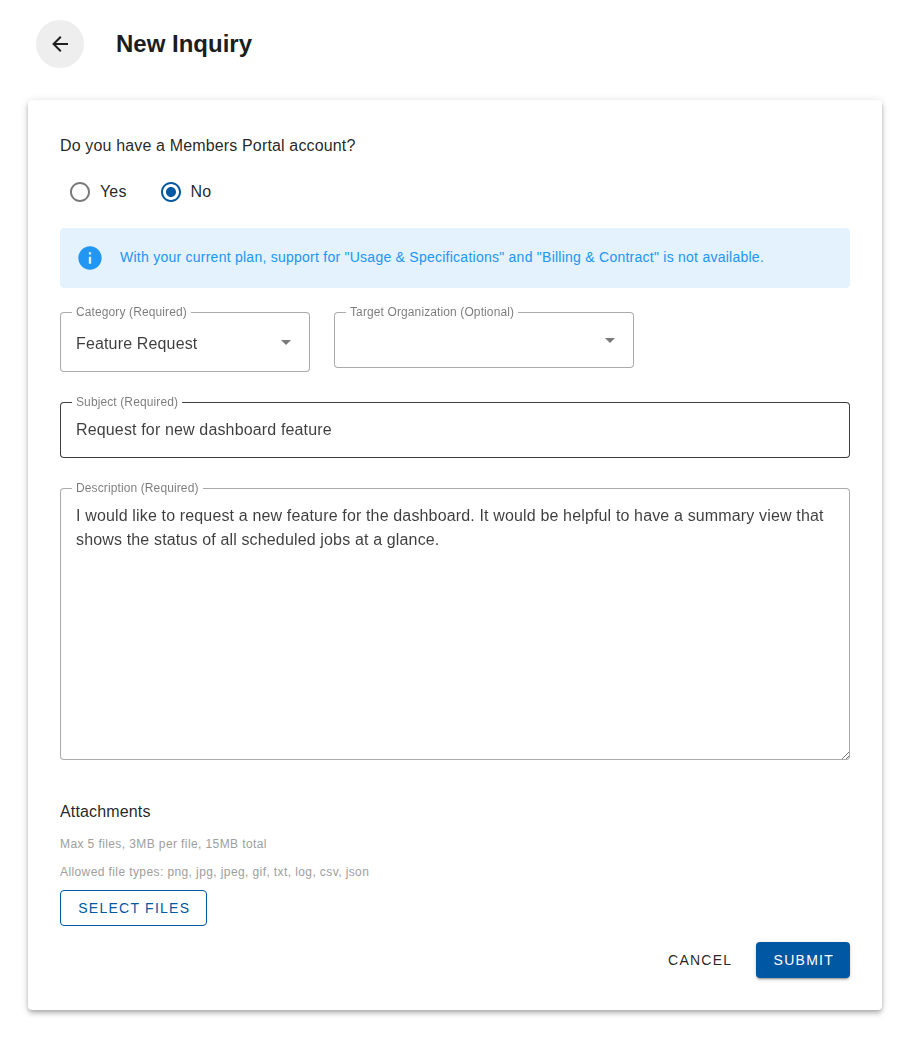
Section titled “Filling in the Inquiry Form”When you select “No”, the inquiry form is displayed.
Category (Required)
Section titled “Category (Required)”Select from the following categories.
| Category | Description |
|---|---|
| Usage & Specifications | Inquiries about opswitch specifications and how to use features |
| Bug Report | Inquiries about bugs in opswitch |
| Feature Request | Requests for new features or improvements to opswitch |
| Billing & Contract | Inquiries about contracts and billing |
| Request Cancellation for Organization User | Inquiries about cancelling users belonging to the same organization |
| Other | Inquiries that do not fall into the above categories |
Target Organization (Optional)
Section titled “Target Organization (Optional)”If your inquiry is related to a specific organization, you can select it from the dropdown.
Subject (Required)
Section titled “Subject (Required)”Enter the subject of your inquiry. Maximum 100 characters.
Description (Required)
Section titled “Description (Required)”Enter the details of your inquiry. Maximum 5,000 characters.
Attachments
Section titled “Attachments”You can attach files as needed.
- Up to 5 files
- Up to 3MB per file
- Up to 15MB total
- Allowed file types: png, jpg, jpeg, gif, txt, log, csv, json
Click the “Select Files” button to choose files. To remove an attached file, click the delete button next to the file name.
Submit the Inquiry
Section titled “Submit the Inquiry”When you have finished filling in the form, click the “Submit” button. After submission, you will be redirected to the inquiry detail screen.