
Start/Stop EC2 instance
You must have AWS Account Linkage version 2.0 or higher to run this job. Please see the following page for information on updating permissions.
The procedure for creating a task is as follows.
- From the header menu, click “TASK” - “EC2” - “Start/Stop EC2 instance”.
- A list of tasks will be displayed. Once you have created a task, you can edit or delete it from this screen. At first, there are no tasks, so click the CREATE button.
- Enter the conditions and click the CREATE button.
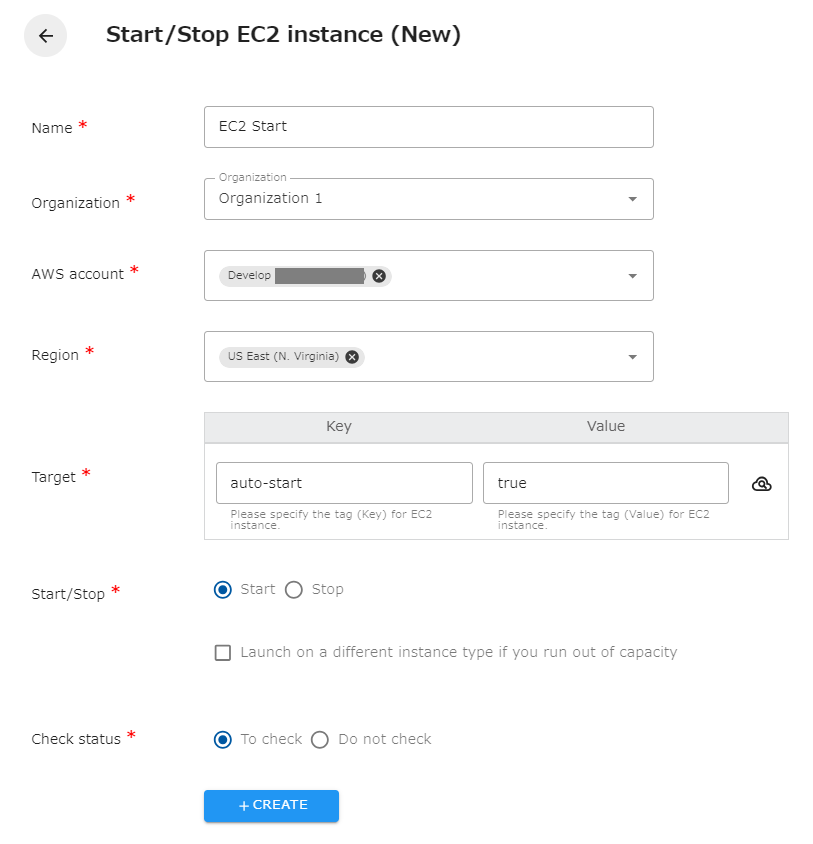
The following is a description of the items on the screen.
| Name | The name of the task. |
|---|---|
| Organization | Specify the organization. Members of the same organization can browse and edit. |
| AWS account | Linked AWS accounts will be displayed. Select the target AWS account. |
| Region | Select the target region. |
| Target | Specify the tag (Key and Value) of the EC2 instance you wish to operate. You can also set the same tag to multiple EC2 instances to start or stop them all at once. |
| Start/Stop | Select whether to start or stop the EC2 instance. |
| Launch on a different instance type if you run out of capacity | When launching an instance, if the target instance cannot be launched due to insufficient capacity error (InsufficientInstanceCapacity), it will attempt to launch with the specified instance type. If unchecked, no attempt is made to launch with a different instance type. |
| Check status | Checks the status of the created resource. If checked, success is considered when the created resource is completed. If not checked, success is considered when the API returns a successful response. |
When EC2 storage is encrypted with KMS
Section titled “When EC2 storage is encrypted with KMS”- If you encrypt your EC2 storage with an AWS Key Management Service (KMS) customer-managed key, you must update your AWS account integration version to 7.0 or higher. Click here to see how to update your AWS account integration version.
-
The startup task is executed only for EC2 instances in the “stopped” state, and the stop task is executed only for EC2 instances in the “running” state. Nothing is done to EC2 instances in other states.
-
There are cases in which an EC2 instance cannot be started because there is insufficient capacity on the AWS side for the target instance. If the error is unacceptable, secure capacity by purchasing a reserved instance.
-
Even if “Launch another instance type in case of insufficient capacity” is specified, the instance will fail to launch if there is insufficient capacity in the specified instance type. If you want to ensure startup, please purchase a reserved instance to secure capacity.
-
The instance type changed in “Launch on a different instance type if you run out of capacity” will not be automatically modified. If you want to modify a changed EC2 instance, execute the “Change EC2 instance type task” to modify the instance type. For more information on setting up tasks, please refer to the following user guide.
-
When changing the instance type using ” Launch on a different instance type if you run out of capacity ,” an error may occur depending on the combination of the EC2 instance type before and after the change. Please confirm that it works without any problems once manually before executing the schedule with a job. For more information, please refer to the following AWS document.