
View Contract List
Click Management → Contract Management from the header menu to open the Contract Management screen.
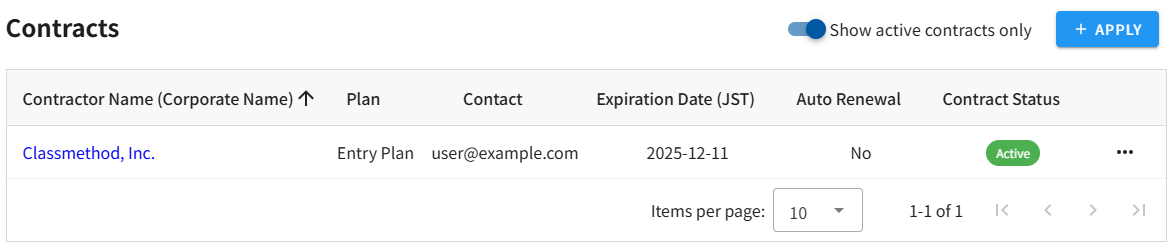
You can view a list of your current contracts.
On the Contract Management screen, a list of contracts that meet the following conditions is displayed.
Contracts Displayed
Section titled “Contracts Displayed”Contracts that meet any of the following conditions will be shown.
1. Contracts where you are registered as the contact
Section titled “1. Contracts where you are registered as the contact”- Displayed contracts: Active contracts and canceled contracts
- Details:
- If Organizations are associated with the contract, you must belong to all of those Organizations.
- If no Organizations are associated, only the registered contact user can view the contract.
2. Contracts associated with Organizations you belong to
Section titled “2. Contracts associated with Organizations you belong to”- Displayed contracts: Active contracts only
- Details:
- Only contracts that are currently active and associated with Organizations you belong to are displayed.
Important:Canceled contracts are displayed only when you are registered as the contact.Canceled contracts are not displayed via organization-based access.
Section titled “Important:Canceled contracts are displayed only when you are registered as the contact.Canceled contracts are not displayed via organization-based access.”Information Displayed
Section titled “Information Displayed”The following information is shown for each contract:
- Contractor Name (Corporate Name)
The corporate or organization name registered as the contractor - Plan
The currently contracted plan (Free Plan, Entry Plan, Standard Plan) - Contact
The email address of the user registered as the contract contact - Expiration Date (JST)
The contract expiration date (displayed only when applicable) - Auto Renewal
Whether automatic renewal is enabled or disabled - Contract Status
The current status of the contract (Active / Canceled) - Operation Menu
Actions that can be performed for each contract
Filtering Contracts
Section titled “Filtering Contracts”Turn on the “Show active contracts only” switch in the upper-right corner of the screen to display only active contracts.
To include canceled contracts, turn the switch off.
Changing the Number of Displayed Items
Section titled “Changing the Number of Displayed Items”You can change the number of contracts displayed per page using the pagination settings at the bottom of the table (10, 25, 50, or 100 items per page).