
Add a job
- Click on “JOBS” from the header menu.
- Click the “CREATE” button in the upper right corner of the job list.
- You will be taken to the creation screen, where you can select a schedule and tasks to be executed. Tasks are executed in order from the top.
- Finally, click the “CREATE” button.
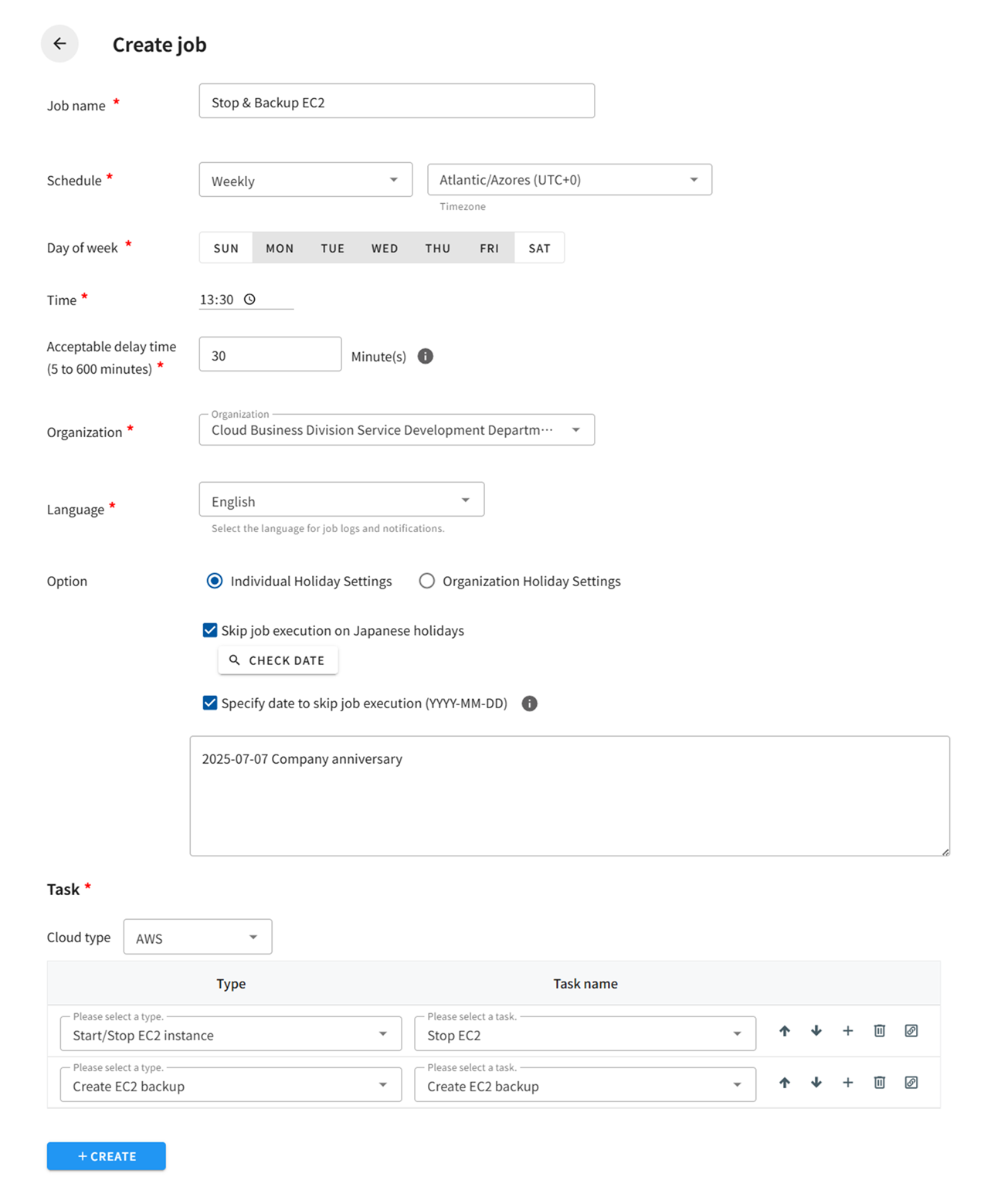
Schedule Type
Section titled “Schedule Type”Runs jobs at a specified time each day.
Weekly
Section titled “Weekly”Job is executed at a specified time on a specified day of the week.
Monthly
Section titled “Monthly”Job will be executed at the specified time on the specified date each month.If there is no specified date in the month, the job will not be executed. If you select the last day of the month, the job will be executed on the last day of the month.
Specify execution interval
Section titled “Specify execution interval”Job will be executed at the specified time on the specified date each month. If there is no specified date in the month, the job will not be executed. If you select the last day of the month, the job will be executed on the last day of the month.
Run only once
Section titled “Run only once”The job is executed only once at the specified date and time. After execution, the job is turned off.
Manual
Section titled “Manual”Execute a job by user operation. Perform immediate execution from the job list screen.
Option
Section titled “Option”Timezone
Section titled “Timezone”Select the time zone for the job. If you prefer Japan time, please select “Asia/Tokyo”.
Acceptable delay time
Section titled “Acceptable delay time”For non-manual schedules, you can set an acceptable delay time. This is the amount of time a job is allowed to run if it cannot run at a specified time due to maintenance, failure, or load delays. Specify the acceptable delay in minutes, from 5 minutes to 600 minutes. If the acceptable delay is exceeded, the job will not be executed and an error will occur.
Language
Section titled “Language”Set the language for logs and notifications.
Individual Holiday Settings
Section titled “Individual Holiday Settings”Skip job execution on Japanese national holidays
Section titled “Skip job execution on Japanese national holidays”This function allows you to skip job execution by specifying the date in advance when you do not want jobs to be executed on holidays. For holidays, please use the option “Skip job execution on Japanese holidays”.
Specify the date to skip job execution
Section titled “Specify the date to skip job execution”This function allows you to skip job execution by specifying the date in advance when you do not want jobs to be executed on holidays. For holidays, please use the option “Skip job execution on Japanese holidays”.
- This can be specified when the schedule is “Daily”, “Weekly”, or “Specify execution interval”.
- Up to 100 entries can be registered.
- Specify in the format YYYY-MM-DD (one-byte numbers and hyphens), such as 2022-01-01.
- A 30-character comment can be entered after the date. (Example: 2022-01-01 New Year’s Day)
- The specified date will not be skipped if the job is immediately executed.
Organization Holiday Settings
Section titled “Organization Holiday Settings”Set the organization holiday settings. For information on organization holiday settings, see the following page.