
Create EBS snapshot
- From the header menu, click “TASK” - “EC2” - “Create EBS snapshot”.
- A list of tasks will be displayed. Once you have created a task, you can edit or delete it from this screen. At first, there are no tasks, so click the CREATE button.
- Enter the conditions and click the CREATE button.
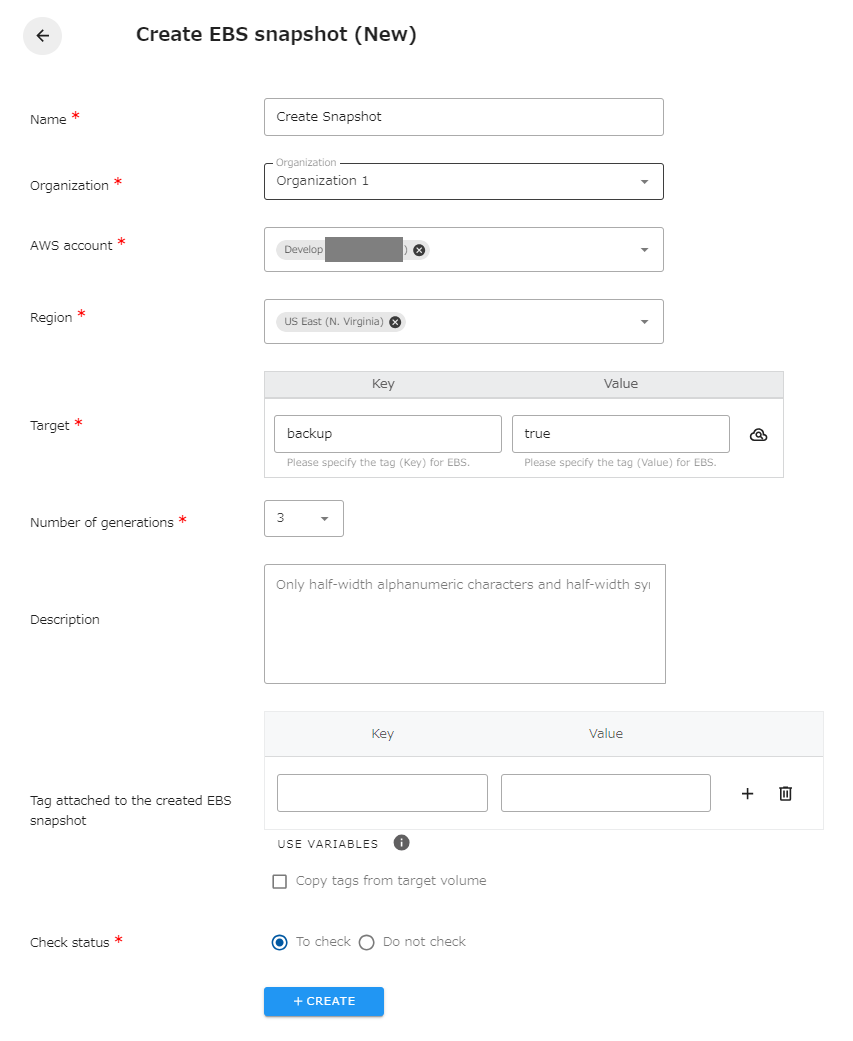
The following is a description of the items on the screen.
| Name | The name of the task. |
|---|---|
| Organization | Specify the organization. Members of the same organization can browse and edit. |
| AWS account | Linked AWS accounts will be displayed. Select the target AWS account. |
| Region | Select the target region. |
| Target | Specify the Key and Value of the EBS volume for which you want to create an EBS snapshot. You can also set the same tag for multiple EBS volumes to create EBS snapshots at once. |
| Number of generations | Sets how many old EBS snapshots to keep. If there are already as many EBS snapshots as the number of generations, the oldest one will be deleted upon creation. |
| Description | Set the text to be included in the description of the created EBS snapshot. Only single-byte alphanumeric characters and single-byte symbols can be specified. |
| Tag attached to the created EBS snapshot | Set tags to be attached to the created EBS snapshots. |
| Check status | Checks the status of the created resource. If checked, success is considered when the created resource is completed. If not checked, success is considered when the API returns a successful response. |
Variables that can be used to tag the EBS snapshots you create
Section titled “Variables that can be used to tag the EBS snapshots you create”You can use variables to set values for the tag Value. The available variables are as follows.
| Variables | Description |
|---|---|
| ${target_id} | Set the target ID. |
| ${target_name} | Sets the Value of the Name tag of the target. |
| ${execute_date} | Set the job execution date. Example: 2024-03-26 |
| ${execute_datetime} | Set the job execution date and time. Example: 2024-03-26_0530 |
| ${task_name} | Set the task name. |
| ${job_name} | Set the job name. |
Maximum tags to attach to created EBS snapshots
Section titled “Maximum tags to attach to created EBS snapshots”The maximum number of tags that can be attached to a created EBS snapshot is 50. If you try to attach more than 50 tags when executing a job, an error will occur. 3 tags (Name, cm-Task, and creation_info) must be attached to the EBS snapshot task. Please be careful not to exceed 50 tags together with the tags to be copied and the tags specified in the task’s configuration screen.
Regarding generation management of created EBS snapshots
Section titled “Regarding generation management of created EBS snapshots”The EBS snapshot created by the job has a tag cm-Task. The value is the name of the task that created the EBS snapshot. Generation management is performed within an EBS snapshot that has the same EBS as the Backup source and the same cm-Task tag value. EBS snapshots created by another task or manually created EBS snapshots are not deleted in job generation management.
Please note that if the task name is changed during operation, EBS snapshots created prior to the task name will not be included in the generation management.
EBS snapshots without the cm-Task tag will not be deleted by the job, so if you want to keep the EBS snapshots you created, delete the cm-Task tag.
Regarding the restoration of created EBS snapshots
Section titled “Regarding the restoration of created EBS snapshots”If you want to restore the EBS snapshot you created, log in to the Management Console and restore it from the EC2 screen. The documentation on the official site is as follows.