
Create EC2 backup
- From the header menu, click “TASK” - “EC2” - “Create EC2 Backup”.
- A list of tasks will be displayed. Once you have created a task, you can edit or delete it from this screen. At first, there are no tasks, so click the CREATE button.
- Enter the conditions and click the CREATE button.
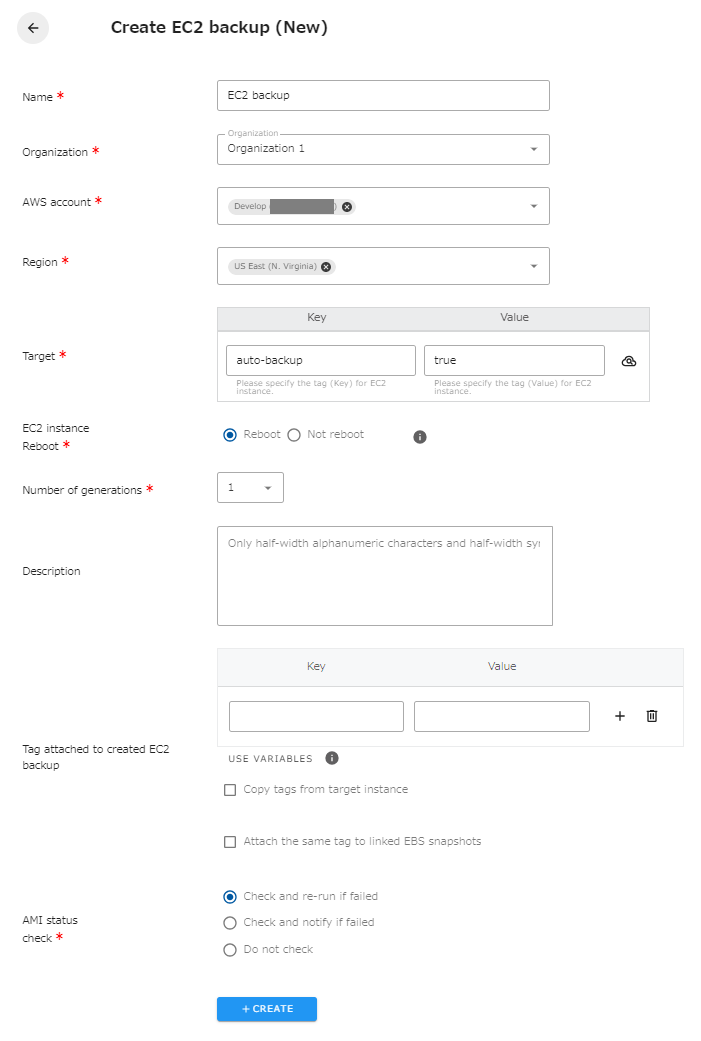
The following is a description of the items on the screen.
| Name | The name of the task. |
|---|---|
| Organization | Specify the organization. Members of the same organization can browse and edit. |
| AWS account | Linked AWS accounts will be displayed. Select the target AWS account. |
| Region | Select the target region. |
| Target | Specify the Key and Value of the EC2 instance for which you want to create an EC2 Backup. You can also set the same tag for multiple EC2 instances to create EC2 backups at once. |
| EC2 Instance reboot | If you select “Yes,” the EC2 instance will be stopped to create a quiescent point, which will cause downtime when creating the EC2 Backup, but will preserve the integrity of the data. |
| Number of generations | Sets how many old EC2 backups to keep. If there are already as many EC2 backups as the number of generations, the oldest one will be deleted upon creation. |
| Description | Set the text to be included in the description of the created EC2 Backup. Only single-byte alphanumeric characters and single-byte symbols can be specified. |
| Tag attached to the created EC2 Backup | You can tag the EC2 backups (AMI) you create with any tags, specifying the Key and Value. The Value can be set to a value using a variable. “Copy tags from the target instance” If checked, all tags attached to the target instance will be copied to the EC2 Backup (AMI) you created. “Attach the same tag to the linked EBS snapshot” If checked, all tags attached to the created EC2 Backup (AMI) will also be attached to the EBS snapshot associated with the AMI. |
| AMI statuscheck | You can choose to check the status of the resource created in the job execution result and reflect the result. If checked, the job is considered successful when the created resource is available. If not checked, the job will be considered successful if the API returns a successful response. “Check and re-run if failed” After a time, the status is checked, and if the status is failed, the job is re-created. If the status is failed, the job is re-created, which takes longer than if the status is not checked. If the status is not checked, it takes about 5 seconds. If the status is not available after 9 retries, the job is considered failed. “Check and notify if failed” After a time, the status will be checked and if it fails, the job will fail and you will be notified by email. Please configure the notification settings in the “Notification Settings” in the Administration menu. If “No notification” is selected in the notification settings, you will not be notified. As with re-execution, it will take longer for the job to complete than if it is not checked. “Do not check” The job will be successful if CreateImage API is successful because it does not check the status of the resource after creation. If the job succeeds, the status may still be failed, but the job will finish earlier because it does not wait for the EC2 Backup to be created. |
Variables that can be used to tag the EC2 backups you create
Section titled “Variables that can be used to tag the EC2 backups you create”You can use variables to set values for the tag Value. The available variables are as follows.
| Variables | Description |
|---|---|
| ${target_id} | Set the target ID. |
| ${target_name} | Sets the Value of the Name tag of the target. |
| ${execute_date} | Set the job execution date. Example: 2024-03-26 |
| ${execute_datetime} | Set the job execution date and time. Example: 2024-03-26_0530 |
| ${task_name} | Set the task name. |
| ${job_name} | Set the job name. |
Maximum tags to attach to EC2 backups created
Section titled “Maximum tags to attach to EC2 backups created”The maximum number of tags that can be attached to a created EC2 Backup is 50. If you try to attach more than 50 tags when executing a job, an error will occur. 3 tags (Name, cm-Task, and creation_info) must be attached to the EC2 Backup task. Please be careful not to exceed 50 tags together with the tags to be copied and the tags specified on the task configuration screen.
Regarding the generation management of EC2 backups created
Section titled “Regarding the generation management of EC2 backups created”EC2 backups created by a job have a tag cm-Task. The value is the name of the task that created the EC2 Backup. Generation management is performed within the EC2 Backup whose source EC2 is the same and whose cm-Task tag has the same value. EC2 backups created by another task or manually created EC2 backups are not deleted in the job’s generation management.
Note that because the task name is used for generation management, if the task name is changed during operation, EC2 backups created prior to the task name will not be subject to generation management.
EC2 backups without a cm-Task tag will not be deleted by the job, so if you want to keep the EC2 backups you created, delete the cm-Task tag.
Restoring Created EC2 backups
Section titled “Restoring Created EC2 backups”Created backups are saved in the form of an Amazon Machine Image (AMI). If you wish to restore them, log in to the Management Console and restore them from the EC2 screen. The documentation on the official site is as follows