
Password Settings
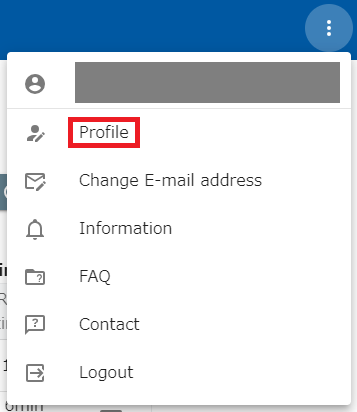
Your profile page allows you to change, set, or disable your password. Click on the dot icon on the far right of the header, then click on Profile to open your profile page.
The operations are as follows, respectively.
Change your password
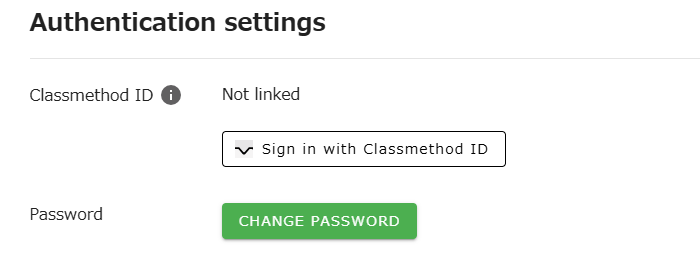
Section titled “Change your password”- Click the “CHANGE PASSWORD” button.
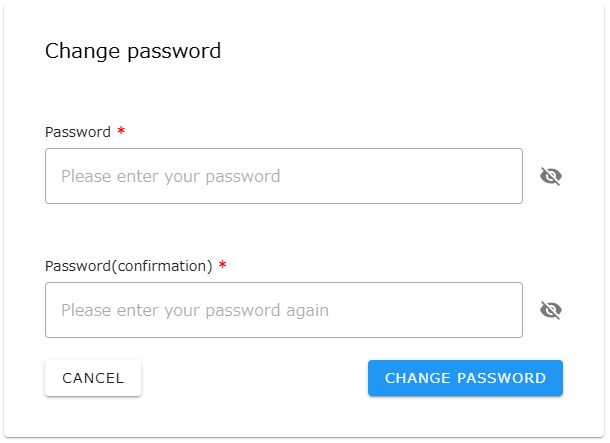
- When the page to change the password opens, enter the new password and click the “CHANGE PASSWORD” button to save it.
Set your password
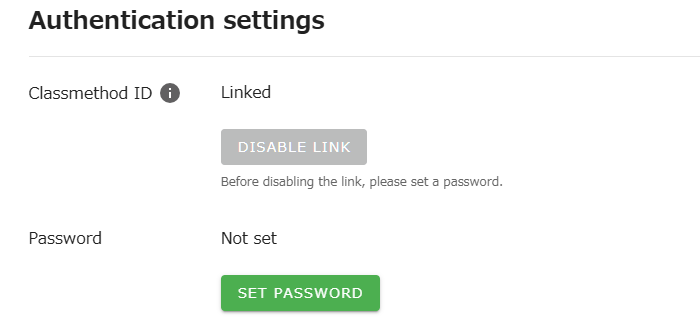
Section titled “Set your password”An opswitch account logged in with a Classmethod ID do not have a password set for opswitch. A password will need to be set in order to unlink Classmethod ID.
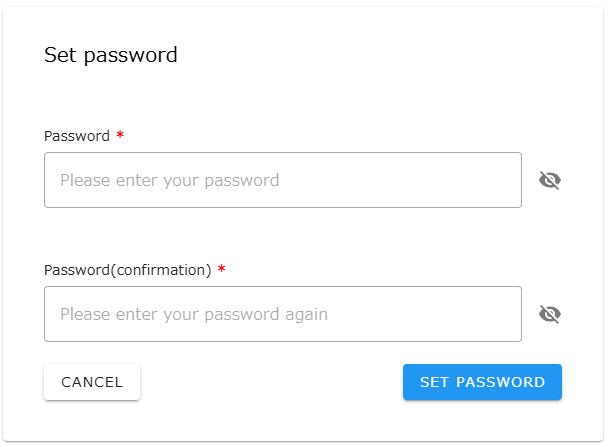
- Click the “SET PASSWORD” button.
- When the page to set the password opens, enter the new password and click the “SET PASSWORD” button to save it.
Disable your password
Section titled “Disable your password”An opswitch account linked to a Classmethod ID can use the Classmethod ID to log into opswitch, which may eliminate the need for an opswitch password.
- Click the “DISABLE PASSWORD” button.
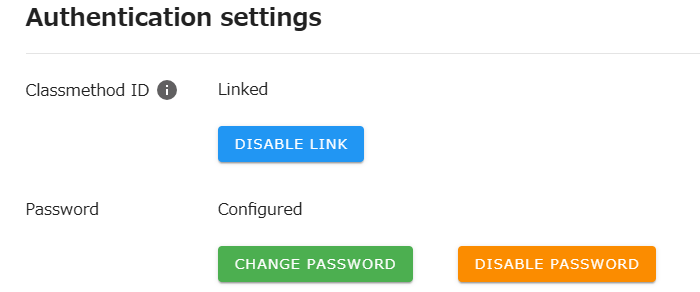
- A confirmation dialog box will open, confirm that everything is correct and click the “OK” button.