
Inquiry Details
Click the subject on the inquiry list screen to open the inquiry detail screen.
Detail Screen
Section titled “Detail Screen”The top of the screen displays the subject, category, status, and target organization.
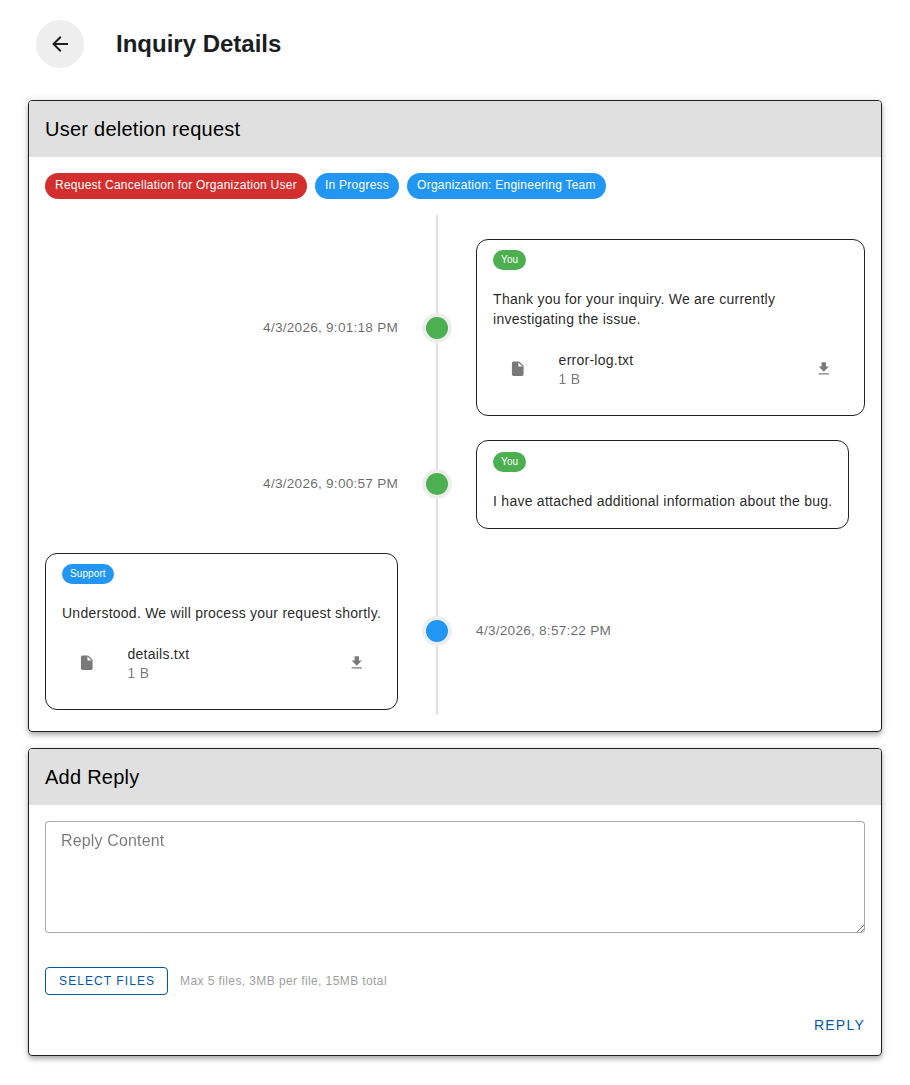
The center of the screen shows the conversation history in a timeline format. Your messages appear on the right side, and support messages appear on the left side.
Download Attachments
Section titled “Download Attachments”If there are attachments in the conversation, click the file name to download them.
If the ticket is not closed, a reply form is displayed at the bottom of the screen.
- Enter your reply in the “Reply Content” field (maximum 5,000 characters)
- Attach files if needed
- Up to 5 files, 3MB per file, 15MB total
- Allowed file types: png, jpg, jpeg, gif, txt, log, csv, json
- Click the “Reply” button
Close a Ticket
Section titled “Close a Ticket”Tickets with “Resolved” status can be closed. Click the “Close Ticket” button at the top of the screen.