
Copy DB cluster snapshot across regions
You must have AWS Account Linkage version 4.0 or higher to run this job. Please note that you must be version 8.0 or higher to use a customer-managed key when copying encrypted DB cluster snapshots. See the following page for information on updating permissions.
Update your linked AWS account to use new features
Supported Amazon Aurora MySQL and Amazon Aurora PostgreSQL; see “Copy DB snapshot across regions” for DB snapshot interregional copy tasks except Aurora.
The procedure for creating a task is as follows.
- From the header menu, click “TASK” - “RDS(Aurora)” - “Copy DB cluster snapshot across regions”.
- A list of tasks will be displayed. Once you have created a task, you can edit or delete it from this screen. At first, there are no tasks, so click the CREATE button.
- Enter the conditions and click the CREATE button.
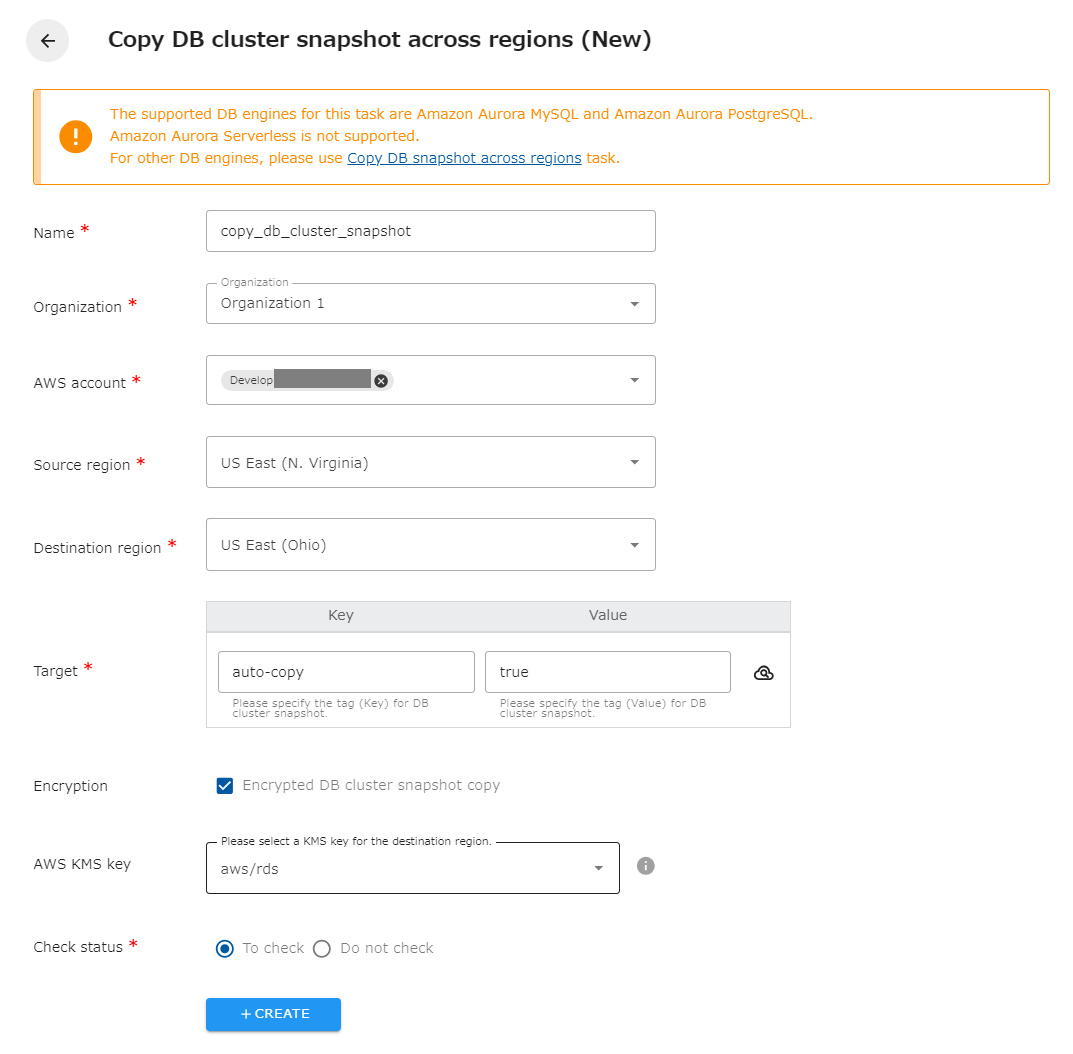
The following is a description of the items on the screen.
| Name | The name of the task. |
|---|---|
| Organization | Specify the organization. Members of the same organization can browse and edit. |
| AWS account | Linked AWS accounts will be displayed. Select the target AWS account. |
| Source region | Select the target region.Select the target region. You cannot specify the same region as the copy destination. |
| Destination region | Select the destination region. The same region as the source cannot be specified. |
| Target | Specify the tag (Key and Value) of the DB cluster snapshot you wish to operate on. You can also set the same tag for multiple DB cluster snapshots to have the snapshots copied together. |
| Encrypted DB cluster snapshots copy | Check if encrypted DB cluster snapshots are included in the target. You will be able to select the key for the destination region. If not checked, it will automatically be encrypted with AWS Managed type key (aws/RDS). |
| AWS KMS Key | Select a KMS key to encrypt/decrypt DB cluster snapshots in the destination region, either an AWS managed type key (aws/RDS) or a customer managed type key created in the destination region. |
| Check status | Checks the status of the created resource. If checked, success is considered when the created resource is completed. If not checked, success is considered when the API returns a successful response. |
Regarding tags
Section titled “Regarding tags”The copied DB cluster snapshot will be automatically tagged with “cm-Task”, “create_info” and “db_cluster_identifier”. Do not delete “cm-Task” and “create_info” as they are necessary for management. Other tags are automatically added to the original DB cluster snapshot.
Regarding generation management
Section titled “Regarding generation management”If an older DB cluster snapshot is deleted in the source generation management, it will also be deleted in the destination. Only DB cluster snapshots copied by the same task in opswitch will be deleted. Old DB cluster snapshots copied manually or by another tool will not be deleted.
The same task is determined by the task name. If the task name is changed during operation, DB cluster snapshots copied before that time will be considered DB cluster snapshots copied by another task and will not be deleted at the destination even if they are deleted at the source.
If you want to leave the destination DB cluster snapshot out of the generation management, delete the “cm-Task” tag attached to the DB cluster snapshot.
Note that DB cluster snapshots copied by the previous version of opswitch have the tags “cm-task” and “db_instance_identifier” instead of “cm-Task” and “db_cluster_identifier”. Those DB cluster snapshots will be subject to generation management after migrating to the current version of opswitch.
When copying encrypted DB cluster snapshots
Section titled “When copying encrypted DB cluster snapshots”To copy encrypted DB cluster snapshots, select the KMS key in the destination region; AWS managed keys (aws/RDS) and customer-managed keys are available. However, the available customer-managed keys are subject to the following conditions. Failure to meet these conditions will result in an error when executing the copy.
- The key type must be symmetric.
- The status of the key must be valid.
- The key user must include the IAM role created in opswitch’s AWS account linkage. the IAM role name can be found on opswitch’s “AWS Account Settings” page by opening the “Edit AWS Account linkage” page for the target AWS account The IAM role name can be found on the “AWS Account Settings” page of opswitch.
Please note that AWS Account linkage version 8.0 or higher is required to use customer-managed keys.