
Change your e-mail address
How to change the e-mail address that is your account ID. If you have linked your Classmethod ID, you cannot change your email address. Before changing your email address, please disable the Classmethod ID link.
Steps to change your e-mail address
Section titled “Steps to change your e-mail address”- Click on “Change Email Address” from the dot icon in the upper right corner of the header.
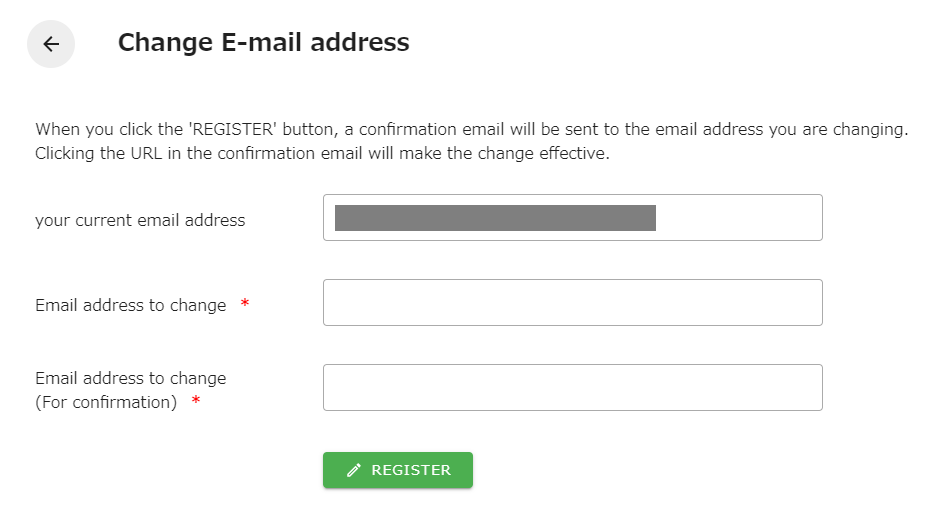
- Register the new e-mail address from the change e-mail address screen.
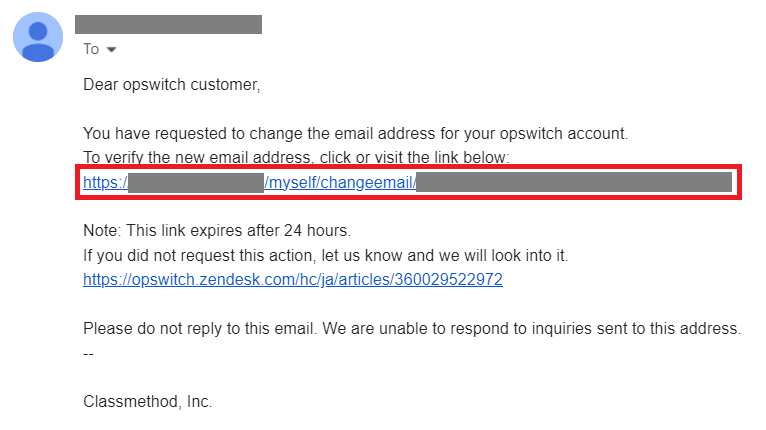
- A confirmation email will be sent to your registered email address.
- Click on the URL provided in the change confirmation e-mail.
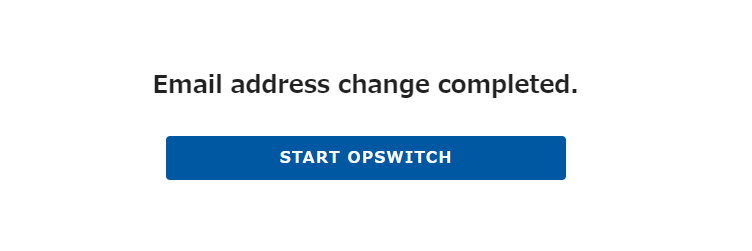
- The change is complete when the “Change Complete” screen is displayed.
Register the new e-mail address.
Section titled “Register the new e-mail address.”On the following screen, enter your new e-mail address and click the REGISTER button.
confirmation email
Section titled “confirmation email”An email will be sent to your new email address with the subject line “opswitch Email Address Change Confirmation”. Click on the URL in the email.
If you see the following screen, your email address has been successfully changed.
Impact of email address change
Section titled “Impact of email address change”By changing your email address, the following information in opswitch will also be updated
- Your login email address will be changed.
- Your notification email address will also be changed.