
Edit Registration Information
In Edit Registration Information, you can update basic contract information such as the contractor name (corporate name), address, contact, and Organizations.
You cannot change the plan on this screen. To change the plan, use the Change Plan feature.
The procedure for updating contract registration information (contractor name, address, contact, and Organizations) is as follows.
Procedure
Section titled “Procedure”From the contract list on the Contract Management screen, click the ︙ (three-dot) menu in the row of the contract you want to update.
Select Edit Registration Information from the dropdown menu.
The Edit Registration Information screen will be displayed.
At the top of the screen, the following notice is shown:
Change the contractor name (corporate name), address, and contact information.
To change the plan, please proceed from Change Plan.
The following fields can be edited.
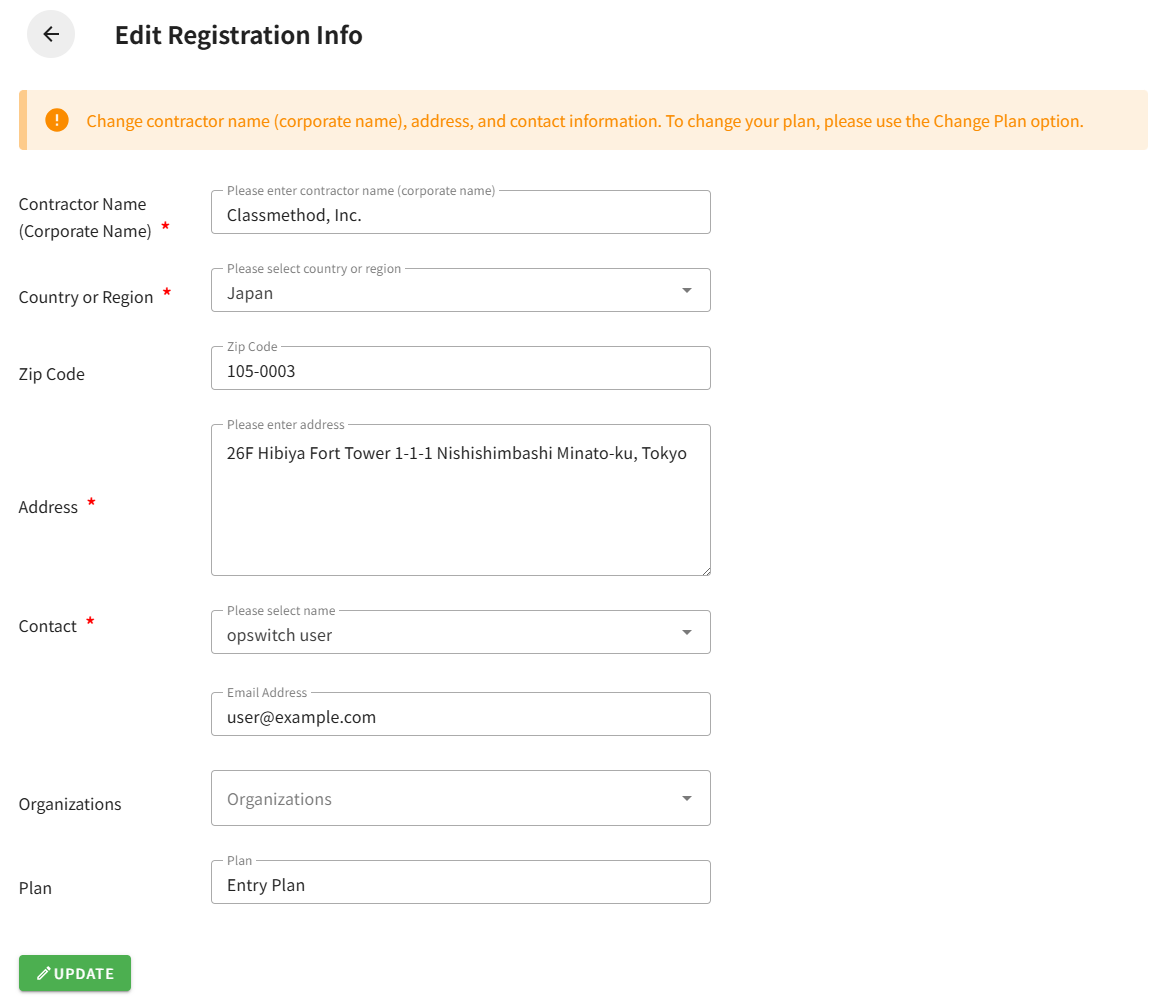
Editable Fields
Section titled “Editable Fields”Required Fields
Section titled “Required Fields”Contractor Name (Corporate Name) (Required)
The corporate or organization name registered as the contractor (up to 100 characters)
Country or Region (Required)
The country or region where the contractor is located
Address (Required)
The contractor’s address (up to 500 characters)
Contact (Required)
Select the user to register as the contract contact.
Only users who have owner permissions for all Organizations associated with the contract can be selected.
Once selected, the user’s email address is displayed automatically.
Optional Fields
Section titled “Optional Fields”Zip Code
The contractor’s zip code (up to 20 characters)
Organizations
The Organizations to associate with this contract (multiple selections allowed)
Read-Only Fields
Section titled “Read-Only Fields”Plan
The plan cannot be changed from Edit Registration Information.
To change the plan, use Change Plan.
After updating the required information, click the Update button at the bottom of the screen.
Once the update is complete, you will be returned to the Contract Management screen, and a message saying “Registration information updated successfully.” will be displayed.
Changing the Contact
The user registered as the new contact must have owner permissions for all Organizations associated with the contract.
If the required permissions are missing, an error message will be displayed.
Changing Organizations
When Organizations are changed, only users who belong to the selected Organizations can be selected as contacts.
Canceled Contracts
Canceled contracts cannot be edited.