
Change the number of tasks in ECS service
You must have AWS Account Linkage version 10.0 or higher to run this job. Please see the following page for information on updating permissions.
Update your linked AWS account to use new features
The procedure for creating a task is as follows.
- From the header menu, click “TASK” - “ECS” - “Change the number of tasks in ECS service”.
- A list of tasks will be displayed. Once you have created a task, you can edit or delete it from this screen. At first, there are no tasks, so click the CREATE button.
- Enter the conditions and click the CREATE button.
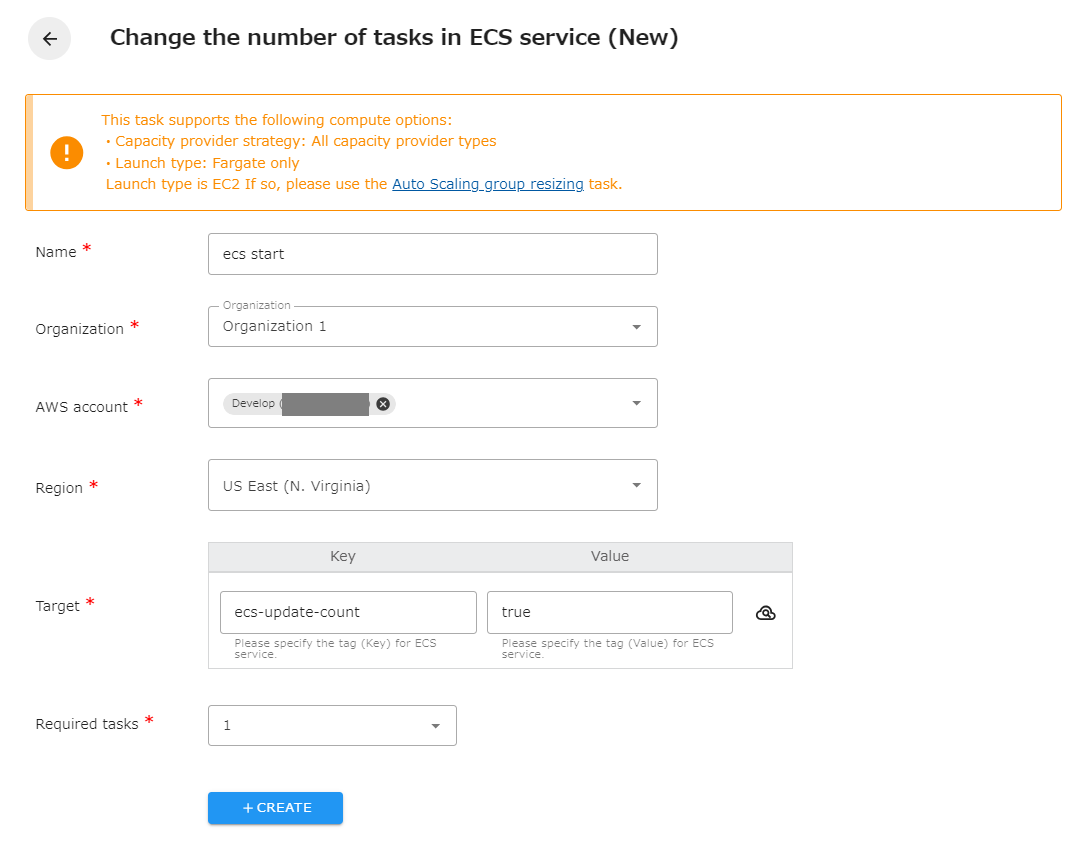
The following is a description of the items on the screen.
| Name | The name of the task. |
|---|---|
| Organization | Specify the organization. Members of the same organization can browse and edit. |
| AWS account | Linked AWS accounts will be displayed. Select the target AWS account. |
| Region | Select the target region. |
| Target | Specify the tag (Key and Value) of the ECS service you wish to operate. You can also set the same tag to multiple ECS services to start or stop them all together. Tagging an ECS cluster will not work. |
| Required tasks | Specify the required tasks between 0~50. |
Upper/lower limits of “Required tasks” that can be set
Section titled “Upper/lower limits of “Required tasks” that can be set”The value that can be set for “Required Tasks” can be a number in the range of 0 to 50. If you wish to set a value greater than 50, please refer to the following official AWS document and use Application Auto Scaling.
Example scheduled actions for Application Auto Scaling
About supported capacity providers
Section titled “About supported capacity providers”Both capacity provider types FargateProvider and ASGProvider are supported for this task.
Note that the ASGProvider type takes some time to actually scale in after the “number of required tasks” is reduced. Please be careful when using this service.
About supported startup types
Section titled “About supported startup types”This task only supports ECS services with an ECS startup type of Fargate. If the startup type is EC2, use the Auto Scaling Group Resize task.