Email notification settings for job run results
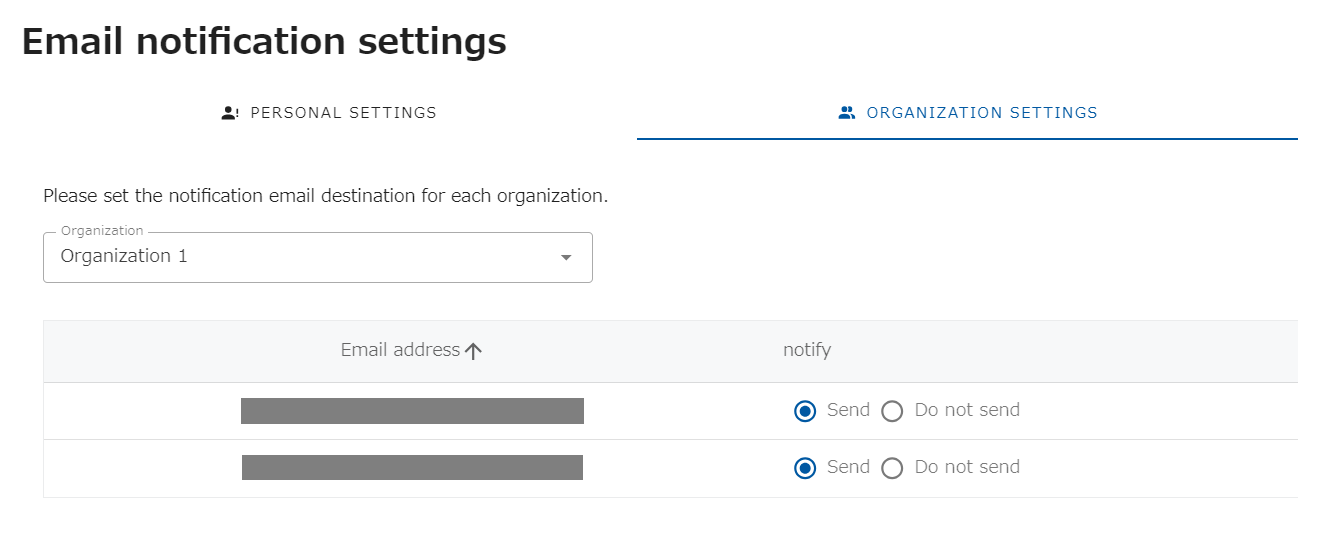
From the header menu, click “SETTINGS” - “Notification Settings” - “Email”. On the Notification Settings page, set “PERSONAL SETTINGS” and “ORGANIZATION SETTINGS”. In order to receive email notifications, both of these must be set to receive notifications. If either one is set to “Do not notify,” you will not be notified. The sender’s email address will be “sys@opswitch.io”.
Personal Settings
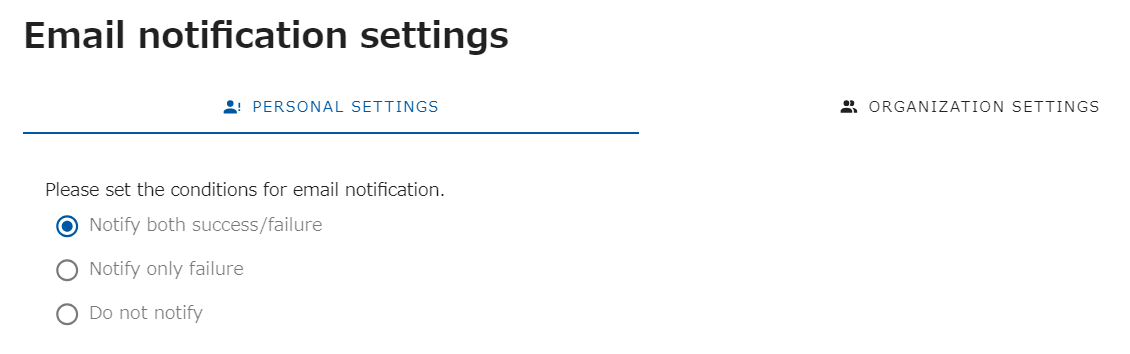
Section titled “Personal Settings”Set the conditions under which job result notification e-mails are sent to logged-in users.
When receiving notification, select either “Notify success/failure” or “Notify failure only” to send a notification e-mail when the condition is met. If you select “Do not notify”, no notification email will be sent to the logged-in user. The setting is applied as soon as the selection is made.
This is a separate setting for logged-in users.
Organization Settings
Section titled “Organization Settings”Set who in your organization will be notified. When you select an organization from the select box, a list of email addresses of users who belong to the organization will be displayed. Select “Send” or “Do not send” for each e-mail address.